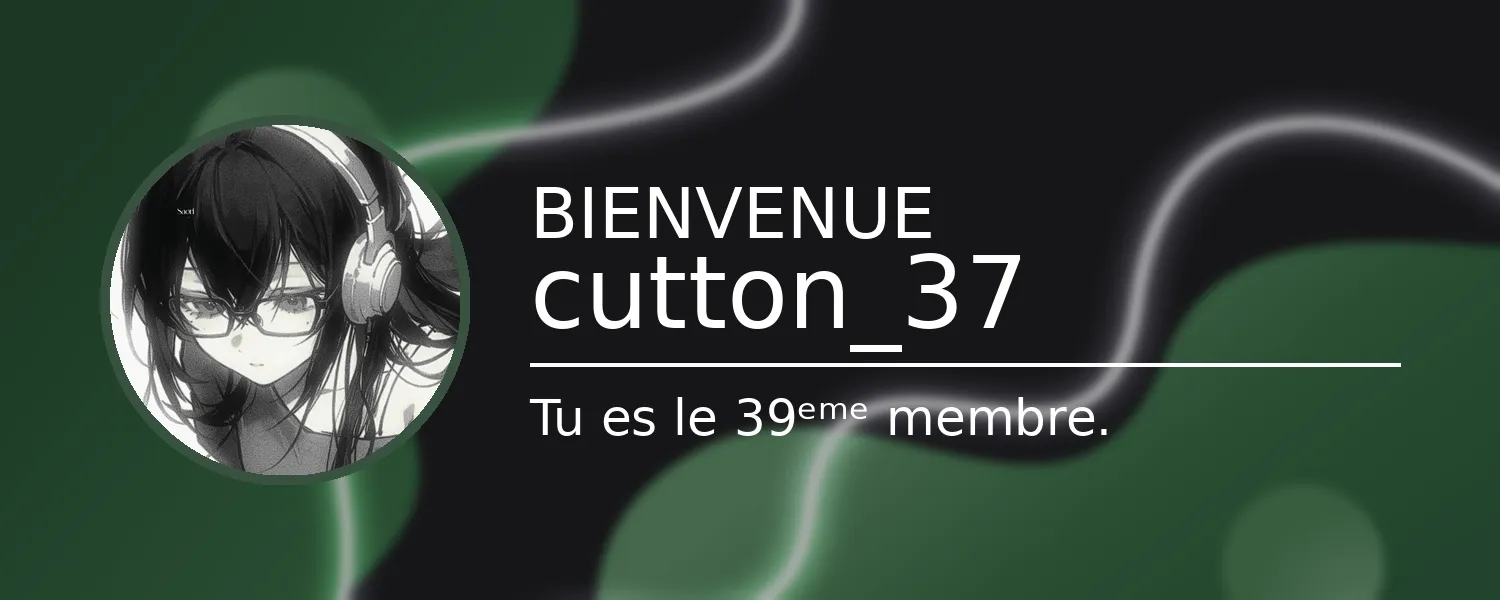
Welcome
Where to find the welcome module?
Section titled “Where to find the welcome module?”You can find the welcome module in the bot’s /config command.
You can access it in two different ways:
- By using the
/configcommand and selecting theBienvenuemodule in themoduleoption. (/config module:Bienvenue) - By executing the
/configcommand and selecting theBienvenueoption from the dropdown menu.
What is the welcome module for?
Section titled “What is the welcome module for?”The welcome module allows you to warmly welcome your new members by sending a personalized message when a user joins the server. You can configure this message to be sent in a specific channel, personalize its content with dynamic variables, and attach a beautiful welcome card generated with a custom background image.
Module Configuration
Section titled “Module Configuration”Once you have accessed the welcome panel, here are the different options available to configure your welcome settings:
- Enable or disable the module: Use the ✔️ Activer or ✖️ Désactiver button to toggle the module state.
- The welcome channel: In the dropdown menu Configurer le salon de bienvenue , select the text channel where the welcome message will be sent. (Note: You must configure the channel before you can modify the message).
- The welcome message: Click on the 🛠️ Message button to write your welcome text. You can include several variables (see the section below).
- The background image: Click on the 🖼️ Image button to provide the URL of an image that will serve as the background for the welcome card generated by the bot. If you wish to remove it, use the 🗑️ Supprimer l’image button.
- Ghost Ping (Optional): In the dropdown menu Configurer les salons du ghost ping , you can select up to 5 channels where the new member will be “pinged” (mentioned then the message is instantly deleted). This is very useful to draw the member’s attention to the rules or announcements without polluting the channel.
Available variables for the message
Section titled “Available variables for the message”To make your welcome message unique and targeted, Lyxios provides several variables that will be automatically replaced by the member’s or server’s information:
- {user.mention} or {user}: Directly mentions the new member (e.g., @Lyxios).
- {user.name}: Displays the member’s username (without mentioning them).
- {user.id}: Displays the member’s unique identifier (ID).
- {server.name}: Displays the name of your server.
- {server.member_count}: Displays the total number of human members (bots are not counted) on the server after the arrival.
About the welcome image
Section titled “About the welcome image”The welcome card is dynamically generated by the bot if you configure a valid image URL.
Image processing by Lyxios
Section titled “Image processing by Lyxios”To ensure optimal and aesthetic rendering regardless of the image you provide, the bot applies precise visual processing:
- Strict Resizing: The image is resized and cropped cleanly (without distortion) to fit a fixed resolution of 1500x600 pixels. Plan a landscape format image for better results.
- Readability Filters: A slight Gaussian blur as well as a darkened veil (overlay) are applied to the image so that the welcome text stands out perfectly.
- Avatar Integration: The member’s profile picture is added in a circular format on the left of the image. It is surrounded by a colored border automatically picking up the dominant color of your background image.
- Smart Text Contrast: The bot calculates the brightness of the text area. If your background is light, the text will be black; if the background is dark, the text will be white, always guaranteeing excellent readability.
- Displayed Information: The image contains the title “BIENVENUE” (or “WELCOME” depending on the language), the member’s name, a matching separator bar, and a subtitle indicating their position (e.g., “You are the 150th member.”).
If the image URL is invalid or inaccessible, the bot is designed not to crash: it will automatically switch to a classic integrated message (Embed) using the bot’s dominant color!
Welcome Card Example
Section titled “Welcome Card Example”